01
Upload the photo
Drop in a reference image, or describe the piece in words. Aurevia reads the type of piece, its stones, setting and metal, and turns it into a clean design.
For jewellery designers and studios
Start with a reference photo: a customer’s screenshot, an old piece or a sketch on paper. Aurevia turns it into sketches, photoreal renders, a design sheet with dimensions and a 3D model you can rotate.
The 3D model is for checking the design and showing clients. Production CAD from Aurevia’s own engine is available by demo while it is tested.
Get startedProduction CAD engine access is currently limited.
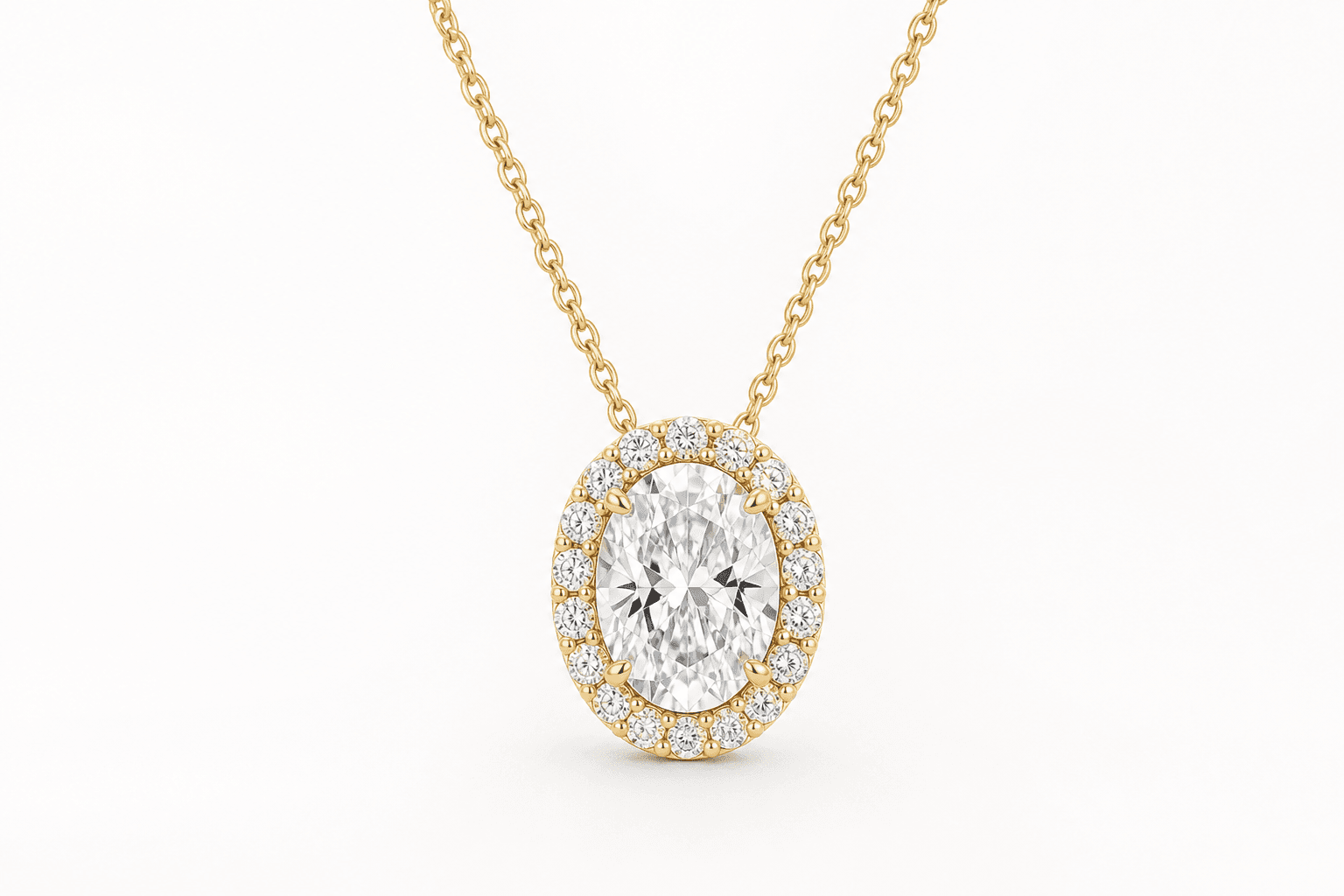
01
Drop in a reference image, or describe the piece in words. Aurevia reads the type of piece, its stones, setting and metal, and turns it into a clean design.
02
See front, side and top views with dimensions and estimated metal weight. Enter one known size, such as the ring size or stone carat, and the sheet scales to match.
03
Turn the design into a 3D model, view it from every angle and open it in AR on supported devices. Book a demo to review the CAD engine for production.
Partly. AI can read a photo and work out the design: the type of piece, stones, setting and proportions. But a photo has no scale and hides the back of the piece, so sizes are estimates until you confirm at least one real measurement. Any model needs a check by your CAD specialist before production.
Concept sketches, a clean 2D graphic, photoreal renders in the metal you choose, a design sheet with views, dimensions and estimated metal weight, and an interactive 3D model you can share with your client.
Not on its own. Treat it as a design and presentation model. Before production, your CAD specialist, setter and caster should check dimensions, stone settings, metal thickness and the needs of your casting or printing process. Ask for a demo to see Aurevia’s production CAD engine.
Proportions are usually close, but absolute size is a guess, because a photo does not show scale. Enter one real measurement, such as the ring size, centre stone carat or band width, and Aurevia rescales the whole sheet to it.
Yes. Upload a Rhino .3DM or an .STL file to Aurevia’s 3D Render. Choose a metal or gem for each part, adjust the finish and present a photoreal, interactive 3D view to your client.
No. Aurevia runs in your web browser and as a desktop app, with no Rhino or other CAD software needed. Rhino 8 users can add the optional Aurevia plugin.
Turn the next ‘can you make this?’ into sketches, a measured sheet and a 3D model your client can see. Talk to us about taking it into production CAD.